Prescriber cannot Send prescriptions even after updating their SPI.
A prescriber reports that they clicked 'send' and successfully entered their PIN# but then encounter the error "Data on root level invalid line 1 position 1" preventing the prescription send from occurring. Generally what has occurred is the prescriber updated their account with Surescripts and in that process Surescripts issued the prescriber a new SPI but the SPI is not assigned to iSalus.
This issue must first be resolved by Surescripts (so open a support case). Then, Surescription will issue another (new) SPI and that will need to updated in the prescriber's iSalus setup to regain access to prescribing.

Potential Cause
The patient's insurance information is inaccurate or incomplete within the Patient Setup.
Try This:
- Verify that the primary insurance subscriber detail matches the scanned insurance card - this is necessary for RXHUB and for claim processing
- When the insurance subscriber is DIFFERENT than the patient, THEN be sure that you list the patient as the FIRST person in the Responsible Party screen. This is where we look when the Insurance Subscriber is not the patient. That is because RXHUB need to know the the "patient" to look up.
- With steps 1 and 2 properly completed, re-run the patient's eligibility.
- Reset your EMR screen (imporant step to refresh your cached data)
- Load the patient's chart and run RXHUB again and you should have success.
If not successful, and you still see "Eligibility error" then escalate and be certain to include the details above
Verify Issue
- Navigate to the Prescription Pad for the patient in question
- Select Coverage
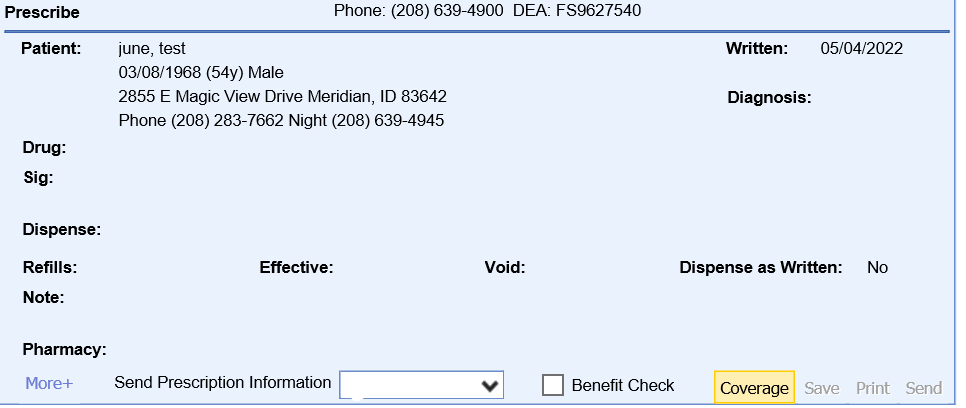
- From the top section of Coverage, there will either be a valid or error response. Errors will be indicated in red as shown below.

- If you see this banner is Red, verify the patient's insurance details with the patient or by reviewing the insurance cards. Modify any details if necessary. (Patient Setup > Insurance)
- If you see this banner is Blue, contact support for further troubleshooting.
