All HTI-1 & 2026 CCDA Updates are live 2/26/2026
CCDA 2026: What’s Changing for Your Practice
OfficeEMR is update with ONC HTI-1 2026 certification requirements, including support for the updated CCDA 2026 standard. These changes are focused on improving data quality and interoperability while minimizing impact on your day-to-day workflow.
The General Availability (GA) date for CCDA 2026 in OfficeEMR is scheduled for 2/26/2026, in release version 2026.151 to meet the required ONC HTI-1 release timeline. This means that CCDA formats will be automatically set to CCDA Version 2026 for most day-to-day processes. Notification of this upcoming change was made in our 25.148 Release Notes on Decemeber 18, 2025.
What Stays the Same
Most of the work for CCDA 2026 happens “under the hood.” For clinicians and staff:
- You will continue to chart, sign notes, and send referrals as you do today.
- CCDA documents will still be generated from familiar workflows.
- No new screens or major workflow changes are required for CCDA 2026 at this time.
Where changes exist, they are primarily in the data captured and the codes and formats used behind the scenes to meet updated national standards.
Key Changes in CCDA 2026 Support
To align with ONC HTI-1 and USCDI v3, OfficeEMR is updating how data is captured and represented in CCDAs. Highlights include:
- Persistent Identifiers (Persistent IDs)
Each key clinical item (such as problems, allergies, medications, vitals, immunizations, and results) receives a long-lived identifier. This helps receiving systems recognize whether an item is new or an updated version of information previously sent. - New and Updated Clinical Fields
Fields needed to support USCDI v3 (such as verification status for problems and allergies) are being added to existing legacy screens. These additional fields improve how your data is understood when exchanged with other systems. - Enhanced Demographics and Social Data
Demographic and social data elements (such as gender identity, pronouns, sexual orientation, tribal affiliation, occupation, and related value sets) are being updated to meet current national standards. - Improved SDOH and Results Representation
Social Determinants of Health (SDOH) panels and lab/imaging results are being aligned with USCDI v3 and CCDA 2026 expectations for more consistent interoperability. - Updated CCDA Stylesheet
A new human-readable CCDA stylesheet is being introduced for 2026 CCDAs. Practices will have a company setting to continue using the legacy stylesheet if needed. - Provenance Traceability
Provenance information has long been included in CCDAs; however, ONC HTI-1 requirements and USCDI v3 place greater emphasis on data origin, traceability, and persistent identifiers to improve transparency and interoperability across systems.
What You Can Expect Next
- Advance communication before CCDA 2026 becomes the default format in OfficeEMR.
- Updated KnowledgeOwl articles detailing each major change (persistent IDs, new fields, EHI export updates, etc.).
- Support resources to help you address any third-party interoperability questions.
Action Item If You Share CCDAs With External Partners
Outside of our built in processes that utilize CCDAs such as Transition of Care/Referrals, Provide Patient Access FHIR and MML CCDA Sends, practices send CCDAs to registries, payers, HIEs, or other third-party systems. If that is you please review CCDA Notice for Third Party to take required actions to ensure that your partners are ready for 2026.
Our goal is to keep your practice compliant with ONC requirements while keeping your daily workflow as familiar and efficient as possible.
All HTI-1 & 2026 CCDA Updates are live 2/26/2026
Practice Action Item CCDA 2019 → 2026 Transition
As part of ONC HTI-1 2026, OfficeEMR will transition from the 2019 CCDA format to the 2026 CCDA format. The General Availability (GA) date is now set to February 26, 2026 in our 26.151 release.
This page explains:
- What iSalus/OfficeEMR will handle automatically
- What your practice may need to do
- When you should contact Support
What iSalus Handles Automatically
OfficeEMR will update the following CCDA-related workflows to use the 2026 format without any configuration or technical work from your practice:
- MyMedicalLocker (MML) – Patient access and downloads
- Transitions of Care – CCDAs sent when a patient is referred or transferred
- Referrals – CCDAs generated as part of your normal referral workflows
- FHIR-based Provide Patient Access – CCDAs used to satisfy the FHIR patient access measure
For these built-in workflows:
- OfficeEMR will automatically switch to the 2026 CCDA format.
- Persistent IDs, updated value sets, and USCDI v3 fields will all be handled behind the scenes.
- No changes are required to your daily documentation, signing, or sending processes.
When Your Practice May Need to Take Action
Action is only needed if your practice sends CCDA files to systems outside of the standard OfficeEMR workflows. Examples include:
- Manually exporting CCDAs from OfficeEMR and uploading them to a third-party portal
- Sending CCDA files via SFTP or secure email to a registry, payer, or HIE
- Custom interfaces or integrations where CCDAs are shared outside of typical referral or MML processes
Does my practice need to take action?
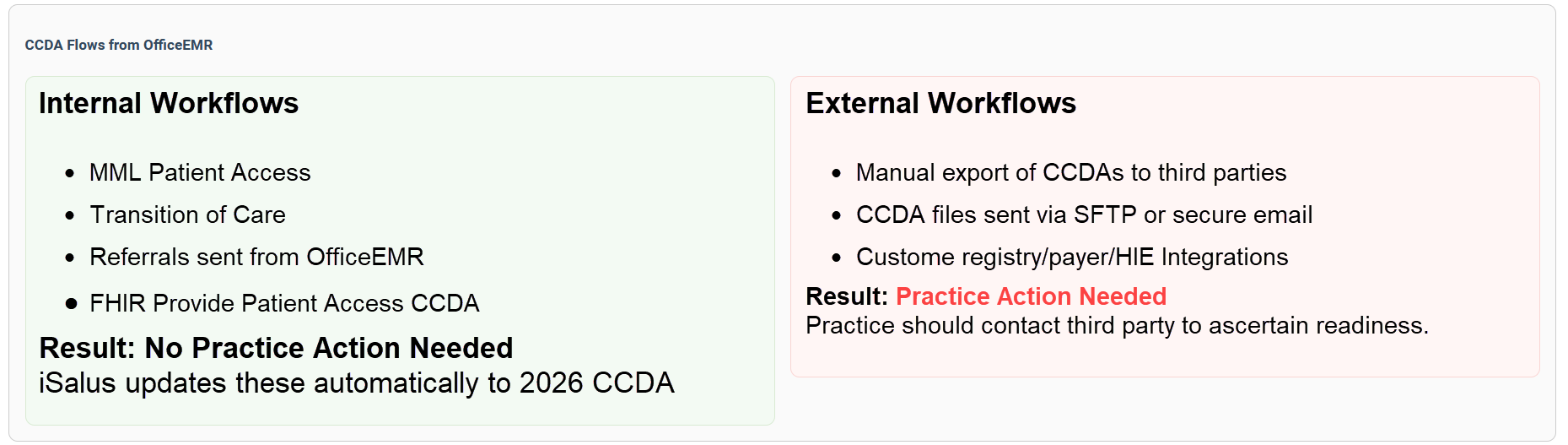
If you have any of these external processes, your external partners will need to be prepared to receive the CCDA 2026 format instead of 2019 CCDA.
Recommended Steps for Practices with External CCDA Processes
- Identify any external CCDA workflows.
Confirm whether your practice sends 2019 CCDAs directly to: registries, payers, HIEs, hospital partners, or other systems outside of OfficeEMR. - Contact those external partners.
Let them know that your CCDA format will be updated to meet HTI-1 requirements and ask whether they can accept CCDA 2026. - Open a support case if there are concerns.
If any partner cannot accept CCDA 2026, or if you are unsure how this affects your setup, please open a support case with:- The name of the external partner/organization
- How they currently receive your CCDA files
- Any known requirements they have (e.g., “must be CCDA 2019”)
What to Ask Your Third-Party Vendor
If your practice sends CCDAs to a registry, HIE, payer, or any outside system outside of OfficeEMR’s built-in workflows, you can use the email below to confirm whether they are ready to receive the updated CCDA 2026 format.
Copy & Paste Email Template:
Hello [Vendor Name] ,
Our EHR vendor (OfficeEMR / iSalus) will be transitioning from the 2019 CCDA format to the 2026 CCDA standard as required by ONC HTI-1. We currently send CCDA files to your system, and we want to confirm that you are prepared to receive CCDA 2026 documents? Is there anything you need us to do before we begin sending 2026 formatted CCDAs?
We want to ensure a smooth transition with no interruptions to our data exchange workflows. Please let us know if you have any questions or need sample files.
Thank you,
[Practice Name]
When in Doubt, Contact Support
We understand that it is not always obvious which processes are handled entirely by OfficeEMR and which are custom to your practice. If you are unsure whether this transition affects you:
- Check with your internal team: “Do we send CCDAs anywhere outside OfficeEMR?”
- If the answer is “yes” or “not sure,” please open a support case.
Our goal is to ensure that your practice remains compliant and that your external partners are ready for CCDA 2026, while keeping your daily workflows as simple and familiar as possible.
2026 CCDA Style-sheet
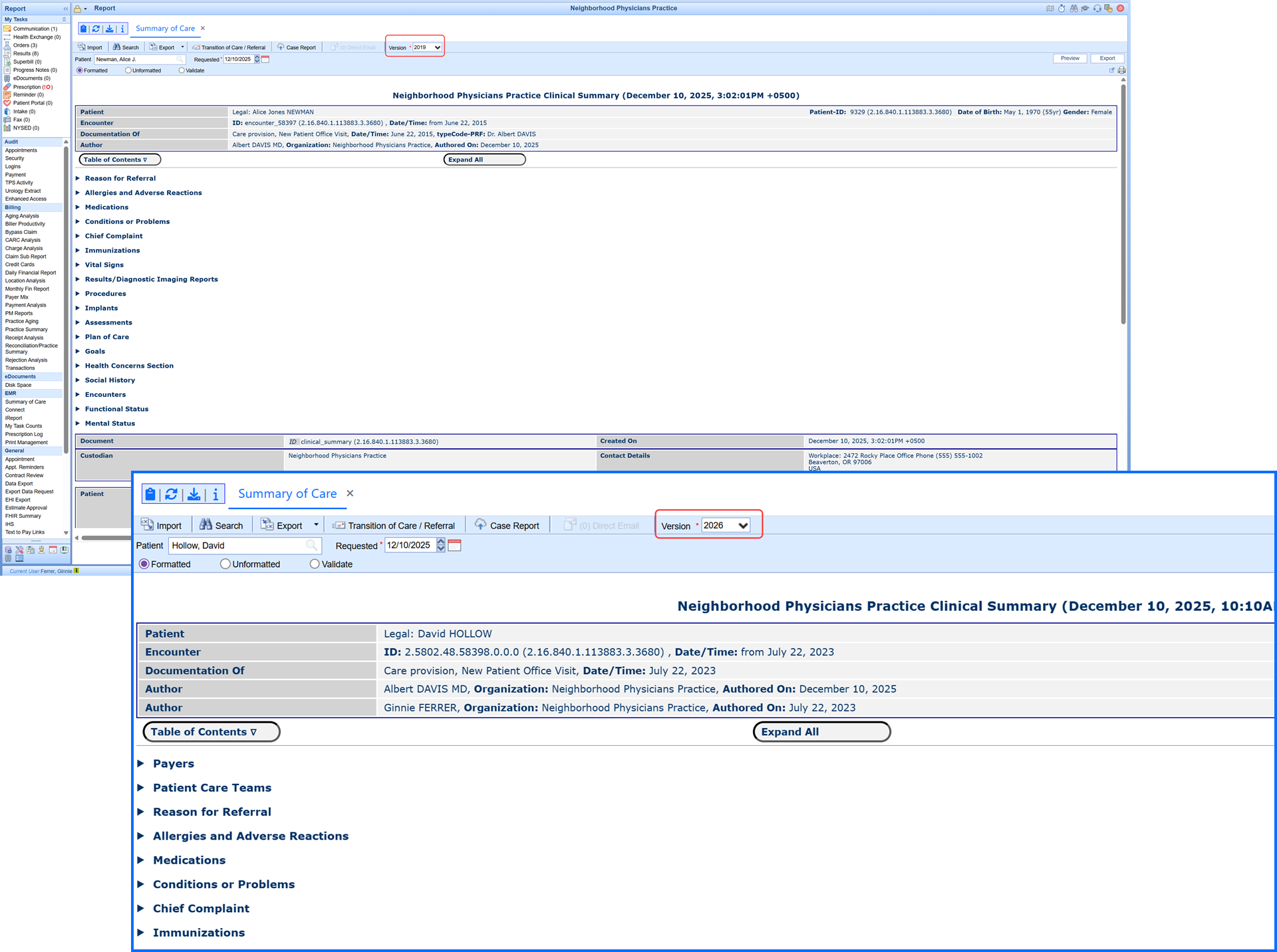
The simplified, modern CCDA viewer delivers improved readability and full support for all CCDA versions:
-
Anywhere users view CCDA documents in the EMR or from our MyMedicalLocker patient portal users will notice the updated format
-
The viewer includes backward compatibility for the current (2019) and prior CCDA versions
-
The streamlined layout improves readability and meets HTI-1 / USCDI v3 needs
-
This update provides for a seamless transition when 2026 CCDA goes live
New CCDA Company Settings
ONC certification standards define required data elements for CCDA exports. These settings allow practices to make limited configuration adjustments in circumstances where organizational policy, regulatory considerations, or specific clinical workflows require additional discretion.
Company Setting: CCDA Override to Replace Provenance with User Type
When enabled, this setting replaces individual staff names in CCDA provenance records with the user’s configured User Type (for example: Doctor, Nurse, Billing, Other).
Instead of displaying a personal name, the CCDA will display:
-
User ID
-
User Type
If no User Type is defined, the system defaults to System User.
Use Case:
This option allows practices to limit disclosure of individual staff names in outbound CCDAs while preserving role-based traceability.
Company Setting: CCDA Override to Turn Off Problem List
When enabled, this setting excludes structured diagnosis data from the Problems/Conditions sections of the CCDA.
Those sections will display as No Information in the exported document.
Important:
Continuity of Care Documents are generally intended to include clinical diagnosis data. Practices should enable this setting only if they have determined that excluding this information is appropriate for their workflow or policy.
All HTI-1 & 2026 CCDA Updates are live 2/26/2026
Persistent ID – Technical Overview (CCDA 2026)
As part of ONC HTI-1 (2026) requirements, OfficeEMR (iSalus) assigns a Persistent ID to key clinical and administrative data elements included in our CCDA 2026 documents. This identifier is a long-lived, versioned ID that allows receivers to recognize the same data item across multiple CCDAs and to detect when that data has changed.
Persistent IDs are embedded in <id> elements of the CCDA and are generated by OfficeEMR. They do not contain PHI and do not require any new user workflows.
Identifier Structure
All Persistent IDs use the same OID root:
root="2.16.840.1.113883.3.3680"
The extension follows an internal dotted format:
extension = Environment.DatabaseId.Type.LocalIdentifier.0.0.Version
- Environment – Deployment context
1= Production2= QA3= Development
- DatabaseId – Internal database identifier for the EMR instance.
- Type – Internal code representing the data category (Allergy, Problem, Result, Vital, etc.).
- LocalIdentifier – The specific record identifier within that category.
- 0.0 – Reserved segments for future use.
- Version – Integer that increments when the underlying data changes (begins with 0 for original version).
Example:
root="2.16.840.1.113883.3.3680"
extension="2.5802.11.71.0.0.1"
2→ QA environment5802→ EMR database ID11→ Problems data category71→ Specific problem list entry for this patient1→ Version 1 of this problem entry (original version starts at 0 therefore the 1 indicates there was a change from the original)
If the same Problem is later updated (for example, status or coding is changed), the Persistent ID remains the same except for the final segment:
extension="2.5802.11.71.0.0.2"
Versioning Behavior
- A Persistent ID is created the first time a qualifying data item is included in a CCDA. The initial Persistent ID assignment sets the version to
.0, which represents the original version of that data item. - If the same data item is edited (for example, via a formal note correction or update workflow), the same Persistent ID is retained and the version segment (final number) is incremented (
.0→.1→.2, etc.). - If an item is replaced with a logically new record (for example, an order is cancelled and recreated as new (a new system identifier is assigned), a new Persistent ID is generated and the version is set to
.0. - Receivers should interpret a Persistent ID ending in
.0as the original version of that specific data element, not necessarily as a brand-new clinical concept. Version changes (.1,.2, etc.) indicate updates to the same logical record.
Data Categories with Persistent IDs
The following data categories in CCDA 2026 are assigned Persistent IDs by OfficeEMR. In most cases, the Persistent ID is associated with the row-level clinical item such as a single problem, a single allergy, a single vital measurement, etc.
| Data Category | How iSalus Handles Persistent ID |
|---|---|
| Allergies | Each allergy concern and related observation in the Allergies section receives a Persistent ID. If an allergy is updated (reaction, severity, status, or coded concept), the version segment is incremented. |
| Encounter | Encounters referenced in the CCDA (e.g., encounter activities or header serviceEvents) use Persistent IDs to identify the specific visit. Changes to encounter details result in a version increment for that encounter ID. |
| Goals | Each individual goal entry is assigned a Persistent ID. Revisions to the goal (target dates, status, description) create a new version of the same ID. |
| Health Concerns | Health concerns documented in CCDA receive Persistent IDs at the concern entry level. Updates generate a new version on the same identifier. |
| Immunizations | Each administered (or documented) immunization record has a Persistent ID. The ID persists across CCDAs; status changes (e.g., completed, refused) or coding updates increment the version. |
| Medical Equipment | Equipment items included in the Medical Equipment/Implants section have a Persistent ID that represents that specific device/implant entry. Data changes increment the version. |
| Medications | Each medication entry (active or historical) in the Medications section receives a Persistent ID. Modifications such as dosage, route, frequency, or status result in a version bump for the same ID. |
| Organizations | Organizations referenced in the CCDA (e.g., care sites, custodian, performing organization) use Persistent IDs to stabilize organization identity across documents. |
| Performers - National Provider ID | Provider-level identifiers, including NPIs referenced in CCDA performer/author roles, are assigned Persistent IDs to represent the provider entity consistently across documents. |
| Performers - Entity | Entity-level performers (persons or organizations) referenced as participants or performers in clinical activities receive Persistent IDs. This improves traceability of who performed or authored which activities. |
| Problems | Each problem/condition entry in the Problem section is assigned a Persistent ID. Updates to the problem (coding, onset, status, etc.) increment the final version segment while preserving identity. |
| Procedures | Each procedure entry receives a Persistent ID to represent that specific procedure instance. Changes to the procedure details increment the version number. |
| Provenance (Author) | Author/provenance information is tied to Persistent IDs that represent the authoring entity. This supports tracking who created or updated specific clinical content over time. |
| Results | Result entries (labs, diagnostic imaging results, panels/observations) are assigned Persistent IDs at the observation or organizer level, in accordance with ONC/USCDI constraints. Corrected or updated results re-use the same ID with an incremented version. |
| Social History – Smoking | Smoking status and related social history observations are represented with Persistent IDs to support longitudinal tracking of these values across CCDAs. |
| Vitals (Blood Pressure, Height, Weight, BMI, etc.) | Each vital measurement instance (e.g., one BP reading, one weight, one BMI calculation) is assigned a Persistent ID. If that measurement record is corrected or updated, the ID is reused with an incremented version. |
| Vitals – Additional Measures (O2 Sat, FiO2, LPM, HR, Respiration, etc.) | Additional vital measures such as oxygen saturation, liters per minute, FiO2, heart rate, respiratory rate, and related percentile values (e.g., BMI percentile) follow the same pattern: one Persistent ID per recorded measurement instance with versioning for subsequent updates. |
How Receivers Can Use Persistent IDs
- Use the combination of
rootandextensionas the stable identifier for a clinical item. - Treat changes in the final segment (Version) as a newer state of the same logical record.
- De-duplicate or reconcile data across multiple CCDAs by matching Persistent IDs rather than only using narrative text or codes.
- Use Persistent IDs in conjunction with timestamps and status codes to build a longitudinal view of patient data.
If you are a third-party vendor integrating OfficeEMR CCDAs and have questions about how Persistent IDs map to your internal data model, please contact the sending practice or reach out through the appropriate support channel for additional implementation details.
All HTI-1 & 2026 CCDA Updates are live 2/26/2026
Persistent IDs in CCDA 2026 (What You Need to Know)
No Changes to Your Daily Workflow
OfficeEMR now includes Persistent IDs in the new CCDA 2026 format as part of the ONC HTI-1 requirements. These are background identifiers that help other systems recognize when a clinical data item (like a problem, allergy, or medication) is the same item over time, even if it’s been updated.
Good news: This does not change how you chart, sign notes, send referrals, or generate CCDAs. Everything is handled automatically by the system.
If You Share 2019 CCDAs With Third Parties
If you currently send 2019 CCDA files to registries, payers, HIEs, or other external systems, you must take steps to ensure those partners can receive the updated CCDA 2026 format.
- Notify all receiving partners that your CCDA format will be updated.
- Verify that partners can successfully accept and process 2026 CCDAs.
- If a partner still requires CCDA 2019, please open a support case so we can review your use case before the transition.
Default CCDA generation will move to 2026 format at a future date TBD, but no later than March 31, 2026, in compliance with ONC HTI-1.
What Is a Persistent ID?
A Persistent ID is a system-generated tracking number that uniquely identifies a clinical data item across time. It does not contain PHI. It simply lets receiving systems tell:
- Whether an item is new or has been sent before
- Whether the item has been updated since the last CCDA
When a value changes (for example, a problem is updated), the Persistent ID stays the same but its version increases. This helps other systems keep your patient’s record consistent and up-to-date.
How Persistent IDs Work (At a Glance)
- Problem (e.g., Hypertension)
- Allergy, Medication, Vital, etc.
Example: 2.5802.11.71.0.0.1
- Identifies the specific item
- Last number = version
- Sees the same ID again later
- Knows if the item changed (version ↑)
All of this happens behind the scenes. You continue working in OfficeEMR as usual, while Persistent IDs help ensure that your data is ready for the next generation of interoperability.
COMING SOON: HT1 Release Date is TBD (Q1 2026)
New & Updated EMR Fields Required for HTI-1
Existing field values have been automatically mapped into the updated USCDI v3 standard lists, so no data has been lost. The updated pick lists you see now reflect the required HTI-1 values. While HTI-1 requires that these fields be available within the EMR, practices are not required to collect or populate every demographic field for every patient.
Patient Setup & Demographics
The Patient Setup/Demographics screen now includes additional fields and updated pick lists to support required HTI-1 / USCDI v3 data elements. Some fields existed previously but are now required to be available.
| Field | Status | HTI-1 Purpose |
|---|---|---|
| Sex Assigned at Birth | Updated | Supports USCDI v3 demographic element for this field |
| Gender Identity | Updated | Supports USCDI v3 demographic element for this field |
| Sexual Orientation | Updated | Supports USCDI v3 demographic element for this field |
| Race (Granular) | Updated | Supports USCDI v3 demographic element for this field |
| Ethnicity (Granular) | Updated | Supports USCDI v3 demographic element for this field |
| Preferred Language | Updated | Supports USCDI v3 demographic element for this field |
| Tribal Affiliation | Updated | Supports USCDI v3 demographic element for this field |
| Occupation | New Required Field | Supports USCDI v3 demographic element for this field |
| Industry | New Required Field | Supports USCDI v3 demographic element for this field |
Problem List
The Problem List screen did not receive many new visible fields, but several existing fields are now more critical for HTI-1 / USCDI v3 compliance:
- Problem Status (e.g., Active, Inactive, Resolved) – existing field used to generate required status codes.
- Onset Date – existing field that, when present, is included in outgoing CCDAs.
- Resolved Date – existing field used when a problem is marked resolved.
- Problem Type / Category – mapped behind the scenes for USCDI problem/health concern classification.
A new verification field named Verify was added to the Add Problem screen defined by USCDIv3 with the following options:
- Unconfirmed
- Confirmed
- Refuted
- Entered in Error
Allergies
The Allergies screen retains its existing layout. For HTI-1 / USCDI v3, the following fields are especially important:
- Allergen (coded when possible) – used as the primary coded concept in CCDAs/FHIR.
- Reaction – existing text or coded value, included in structured exports when available.
- Severity – existing severity values used where supported by the standards.
- Status (e.g., Active, Inactive) – required for correct allergy representation.
A new verification field named Verify was added to the Add Allergy screen defined by USCDIv3 with the following options:
- Unconfirmed
- Confirmed
- Refuted
- Entered in Error
If you have questions about where a specific HTI-1 data element is captured in your current configuration, please contact Support or your Implementation Specialist.
All HTI-1 & 2026 CCDA Updates are live 2/26/2026
USCDI v3 Social Determinants of Health (SDOH) Assessment Panels
OfficeEMR supports four USCDI v3–aligned health assessment panels. These are delivered as templated assessments that we can configure for your practice on request (at no additional charge). Each template is tied to the appropriate LOINC panel and answer codes, includes scoring, and feeds results into Decision Support Interventions on the patient chart. The supported panels are as follows:
-
Social Determinants of Health Panel (LOINC 96951-9)
-
Hunger Vital Sign Panel (LOINC 88121-9)
-
Pregnancy Status Assessment (LOINC 82810-3)
-
Disability Status Assessment (LOINC 89571-4)
How These Panels Work in OfficeEMR
Each SDOH panel is built as an EMR Template, and every template contains:
-
Hard-coded associations to the required LOINC questions
-
Hard-coded LOINC answer codes
-
Score values for each response
-
Answer Result LOINC mappings (the final “panel outcome”)
-
Built-in template validation to ensure the panel is configured correctly
These associations are already included in the SDOH templates we configure for you. No client setup or maintenance is required. Clients to use the Patient History templates in the same way they use other patient history templates.
Completion Is Required for Scoring and Publishing in the CCDA
It is important that a patient completes all questions in a panel.
A completed panel generates a total score, which is required in order to:
-
Produce the Answer Result outcome
-
Publish the panel result to the patient chart
-
Include the result in the 2026 CCDA
If the panel is not fully completed, no score is produced and the process does not continue.
How Results Display in the Patient Chart
When a panel is completed, the system automatically publishes the result to the existing:
Decision Support Intervention (DSI) section of the patient chart
This displays:
-
The panel name
-
The panel score or answer result
-
The date completed
-
A provider-level dismissal workflow (optional)

Panels That Suggest Problem List Items
Two panels may generate a Problem List suggestion based on the score or answer result:
-
Hunger Vital Sign Panel
-
Pregnancy Status Assessment
When applicable, the system uses the existing Problem List Import Queue to suggest adding the appropriate SNOMED CT code.
Providers can review and approve or ignore the suggestion.
Panels That Do Not Suggest Problems
The following panels publish to the DSI section but do not generate Problem List suggestions:
-
Social Determinants of Health Panel
-
Disability Status Assessment
These results are still included in the patient chart and in the 2026 CCDA when completed.
CCDA 2026 Inclusion
Any completed SDOH panel is automatically included in the patient’s 2026 CCDA, using the correct LOINC panel code, score code, and answer-result code.
If you would like these SDOH panels enabled and mapped for your practice, please contact Support or your Implementation Specialist. We will configure the templates using the standardized questions, answers, scoring, and LOINC/SNOMED mappings described above.
All HTI-1 & 2026 CCDA Updates are live 2/26/2026
EHI Export Updates for HTI-1 (2026)
As part of HTI-1 / USCDI v3 compliance, the OfficeEMR EHI Export now includes additional data elements required for 2026 certification. These items are included automatically when present in the patient chart.
New Data Elements Added to the EHI Export
- Demographics: Tribal Affiliation
- Demographics: Occupation
- Demographics: Industry
- Allergies: Verification
- Problems: Verification
These new elements are incorporated into the structured patient records and documents included in your standard EHI Export package. No additional setup is required. For full details on how the EHI Export articles.
All HTI-1 & 2026 CCDA Updates are live 2/26/2026
Public Health Case Reporting – Update to eICR Version 3.1.1
As part of our HTI-1 2026 certification updates, OfficeEMR has upgraded our electronic Initial Case Report (eICR) to Version 3.1.1. This version is the nationally required standard for public health reporting under the 2026 CCDA rules and ensures full compatibility with the Association of Public Health Laboratories (APHL) AIMS platform and jurisdictional reporting systems.
What’s Included in the 3.1.1 Update
The updates included in this release focus on aligning our eICR output with the latest CDC/HL7 requirements. These changes occur automatically in the background and do not require any workflow changes from your practice.
- Updated eICR structure to match Version 3.1.1 format required for 2026 reporting.
- Birth Sex normalization (standardizing values to M / F / UNK) to meet new public health rules.
- Improved validation handling, including structural cleanup and standardized NullFlavor usage.
- Updated value sets for manufactured materials, procedure codes, and other clinical elements validated by public health agencies.
- Expanded data capture to support new USCDI v3 fields that flow into both the CCDA and eICR when available.
These updates ensure that your organization’s electronic case reports continue to be accepted by public health agencies and meet all national certification requirements. The eICR 3.1.1 upgrade is included as part of the HTI-1 2026 CCDA release.
For additional details about how Public Health Case Reporting works in OfficeEMR, please see:
Public Health Case Reporting – OfficeEMR Help
MIPS Call Out: Provide Patient Access Measure in 2026
Need to Improve Your Provide Electronic Patient Access Measure Score?
Meeting this measure requires your practice to have enabled the FHIR API for MIPS Reporting feature. In addition, each day of your reporting period your staff responsible for patient Check-in and Check-Outs must ensure patients are connected to MML or invited to connect to MML at every visit until the patient is either Connected or Opted Out.
Quick Check to Ensure Your Practice is FHIR Enabled:
This is necessary because with FHIR you cannot meet the measure. To do this, go to the Provide Patient Electronic Access article scroll down to the section "Part 2: Access Provided for FHIR API" which instructs you on how to access your practice's FHIR Summary Report. If you are a user with full access and do not see this report then you may not have FHIR Enabled and should reach out to support to get that feature enabled as it is a MIPS requirement.
With FHIR Enabled you then need to ensure your patient are provided electronic access as outlined below (as is required by ONC).
Improve MML Account Creation for your patient population via Intelligent Intakes:
When used with Intake Send Links, this setting lets patients create their own MML accounts at the end of the intake form. Patients set a password before submitting, then receive login instructions. This saves staff time and improves compliance with the Provide Patient Access measure.
IMPORTANT - Meeting the Measure Requires you "Start With the First Visit"
This process begins on the patient’s first visit in the reporting period. If the patient is not connected to MML when they arrive for that first visit of 2026, staff must take action. This MIPS measure requires each patient to be Connected-OR-Opted Out, otherwise you must Invite the patient at each visit in the reporting period. Missing any visit while the patient is not connected automatically fails that chart number for the Provide Patient Electronic Access measure for the reporting year.
Every visit, in iScheduler or Check-In/Check-Out, look at the MML icon in the patient header (next to the chart number):
- Blue = Patient is not connected. Action required to meet the measure.
- Red = Patient opted out. No action required and is meeting the measure.
- Green = Patient is connected. No action required and is meeting the measure.


What To Do When the Icon Is Blue
If the icon is blue, staff must take one of the following actions for that visit:
- Print the MML Welcome Letter
This counts as providing access for that specific visit only.
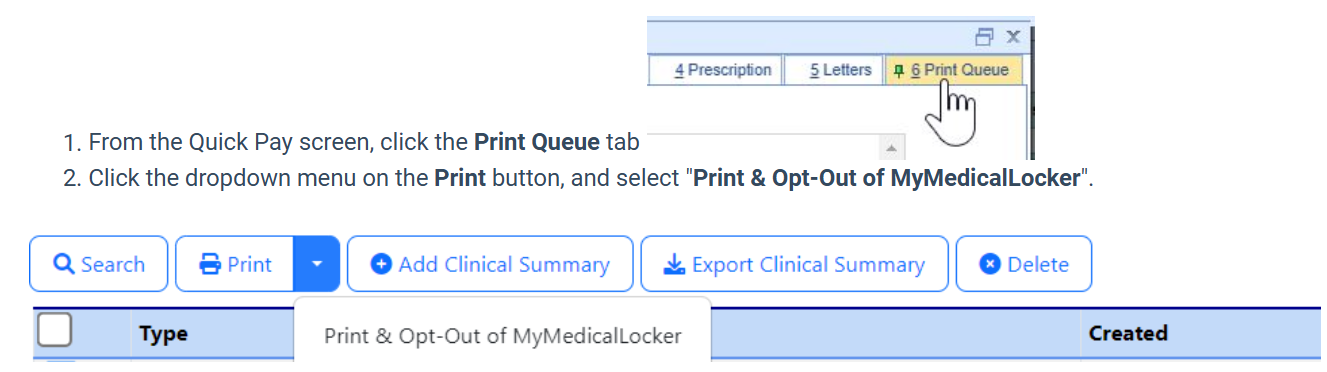
- Or, from the QuickPay Print Queue, choose Print & Opt Out.
This option:- Prints the Welcome Letter,
- Marks the patient as Opted Out (icon turns red),
- Prevents needing to print the letter at future visits, and
- Still allows the patient to connect later, which automatically overrides the opt-out.
Why This Matters
Some practices failed this measure in 2025 because they did not perform this step for every visit where the patient remained unconnected.
To stay compliant:
- Blue = take action (print or opt out)
- Red = done (opted out)
- Green = done (connected)
Following this workflow ensures that every patient either receives their portal invitation or has their preference recorded, which fully satisfies the measure requirements. You can find more details about the measure in our Provide Patient Electronic Access article.
ONC/USCDIv3 - Field with Value-Set Picklists (Expanded or New)
To support ONC USCDI v3 requirements, select EMR fields that use value-set picklists have been expanded, updated, or added. Where changes were required, existing values were mapped to the updated standardized options and will continue to display and function as expected, ensuring no data loss and a smooth transition.
In some cases, new fields with standardized picklists were introduced. ONC regulations do not require practices to populate these new fields, so workflows can remain unchanged. Practices may continue documenting as they always have or choose to incorporate these fields if capturing additional data is beneficial to their workflows.
The purpose of these updates is to ensure interoperability as clinicians share CCDA data files via various methods. The updates include the following areas:
Patient Demographics
- Birth Sex
- Gender Identity
- Sexual Orientation
- Tribal Affiliation NEW FIELD
- Occupation NEW FIELD
- Industry NEW FIELD
Problems
- Verify NEW FIELD
Allergies
- Verify NEW FIELD
Emergency Contact
- Relationship (Note: This updated list is dependent on the Modernized Patient Setup & Demographic screen release coming in Q1 2026)
Social History (NEW TEMPLATE SUPPORT)
- Social Determinants of Health Panel
- Hunger Vital Signs
- Disability Status
- Pregnancy Status
Learn more about Social History Panels.
