Highlights
New features
Added MML Opt Out Column Display Setting to Appointment Report
U20916: We recently added the MML Connection as a display setting within the General "Appointment Report," which displays a column indicating whether a patient is set up with MML. However, this does not indicate if the patient has opted out of MML. In this release, we added an MML Opt Out option to the "Change Display Settings" for the Appointment Report (under Patient Demographics). When selected, this new option will display a "Yes" or "No" column, where "Yes" indicates the patient has opted out and "No" indicates the patient has not opted out of MML. An indicator distinguishing patients who opted out from those not connected will help offices with their efforts to use MML.

Patient Transaction History - New Print Comments Option
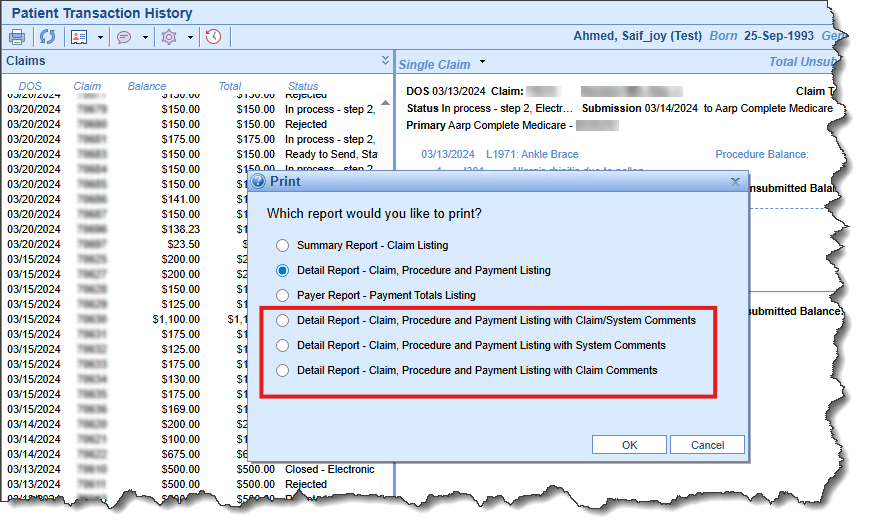
U13801: We added the ability to print the Patient Transaction History, including System comments and Claim/User comments (individually or both). This feature can be beneficial when proving filing limits or providing a ledger for collection agencies upon request. To enable this, we added three new options within the Patient Transaction History print settings:
- Detail Report - Claim, Procedure and Payment Listing with Claim/System Comments
- Detail Report - Claim, Procedure and Payment Listing with Claim Comments
- Detail Report - Claim, Procedure and Payment Listing with System Comments
Enhancements
EMR > Health Exchange - Update display to be Received Date Descending Order
U21077: When a user launches a particular health exchange document from the EMR Timeline, the UI pre-selects the document. However, if the selected document is further down the list, the user cannot see the selection because the UI focus remains at the top of the Health Exchange list instead of on the selected document. Additionally, for patients with numerous records in the Health Exchange, locating specific records can be time-consuming.
In this release, we addressed both issues. First, we updated the sorting of Health Exchange documents so that the default display always sorts by "Received Date descending" making records easier to locate. We also added a functionality enhancement so when a user launches a specific health exchange document from the EMR Timeline, the Health Exchange screen will open and scroll to focus on the selected document. 
New Credit Balance Filters
U21434: The disabling of the Refunds report revealed a workflow gap based on some of the refund workflows. To address this and facilitate the removal of the Refunds report, the following items were added to the Credit Balance window in the Billing portal.
- A DOS filter to the Credit Balance window - This filter will filter on the patient credit balance for only the claims credit that fall into the DOS search parameter. For example, if a patient had a $500 credit balance from three claims with dates of service (DOS) on 06/01/2024 ($150), 06/15/2025 ($150), and 08/20/2025 ($200), and a user searched by DOS for 2024, the expected credit balance in the results would be $150, as only one claim from 2024 has a credit for this patient.
- An Unassigned checkbox to the top of the Credit Balance window - This will filter out patient credit balances that have not been assigned to an insurance or patient. This will function similarly to the existing "Patient Refund" and "Insurance Refund" checkboxes.
- A Grand Total to the Credit Balance window - This will be the grand total for each amount column: Credit Balance, Open Balance, Patient Balance, Patient Refunds, and Insurance Refunds.
- A Refund Primary, Refund Secondary, and Refund Tertiary column - These will list the payer to whom the credit balance is assigned. If not assigned to the insurance, the field will display as blank. If a patient has multiple insurances assigned to a credit, it should display within their respective column (primary, secondary, or tertiary).
We also updated the Credit Balance Details screen so that the Available Credit and Source sections only display credits applicable to the DOS range specified in the Advanced Search. 
Cost Estimate - Self Pay Aggregate Allowed Amount Update
U20945: When a cost estimate is created, the allowed amount is set based on either an aggregated amount or a fee schedule amount, depending on the option selected within the "Patient Cost Estimator - Allowed Amount Usage" company setting. However, if the patient is self-pay and the allowed amount is set to aggregate, there is no payment data to aggregate and calculate an allowed amount.
In this release, we updated the allowed amount logic to set the allowed amount to the charge amount when the patient is self-pay and the allowed amount is set to aggregate. This will ensure that self-pay estimates using aggregate will now return a charge rather than a zero aggregate. 
New EMR Order Alert (Template Action) Triggered By Previously Billed CPT
U20781: Previously, no alert prevented staff from re-ordering lab tests that were not reimbursable if repeated too soon. An alert appearing in the Order Entry process when a test is ordered within a restricted period following a previous occurrence of the same test would be particularly beneficial for Urology and Nephrology practices. In these practices, certain diagnostic tests (e.g., UA - Urinalysis) are often restricted by payers if performed again within 90 days.
In this release, we created a new Template action type called "Order Alert." This supports adding a CPT code that is evaluated against the primary payer and displays a configurable provider warning when an order is selected and the associated CPT has been billed within a defined number of days. 
Vitals - Updated Hover Text For Clarity & Removed Height/Weight Duplication When Multiple BPs Exist
U17946: Clients recording various blood pressure readings in Vitals sometimes lacked visibility of the position recorded in the Timeline hover text. It was also difficult to read due to height and weight appearing multiple times in the current display. In this release, the hover text format was updated to display height and weight only once when multiple blood pressure readings are present. Additionally, blood pressure labels now include position (e.g., "BP (Sitting) 120/80," "standing," and "supine"). 
Added "Assign Auth" to Appointment Report
U18846:We added the "Assign Auth" from the appointment edit screen to the Appointment Report. This enhancement will help identify upcoming appointments that lack an authorization association. Two new display settings options have been introduced under "Appointments": "Assign Auth" and "Has Assigned Auth." 
These options correspond to two new Advanced Search fields & columns in the report: an "Assign Auth" column and a flag ("Has Assigned Auth") that allows users to search for appointments with or without an assigned authorization. 
Procedure Codes - New NDC Table List with Start and End Dates
U15979: An enhancement was added to the Procedure Codes Setup > Drug > NDC setup. This enhancement includes a new table to store up to five NDC codes, each with corresponding start and end dates. Claims will reference this table to retrieve the appropriate NDC code based on the claim's Date of Service (DOS). This feature will assist in tracking NDC codes for frequently used medications. Previously, validating NDC codes from prior lots required auditing the Procedure Code. 
Authorization Module Rebuild - Converted Patient Authorization Screen to Vue
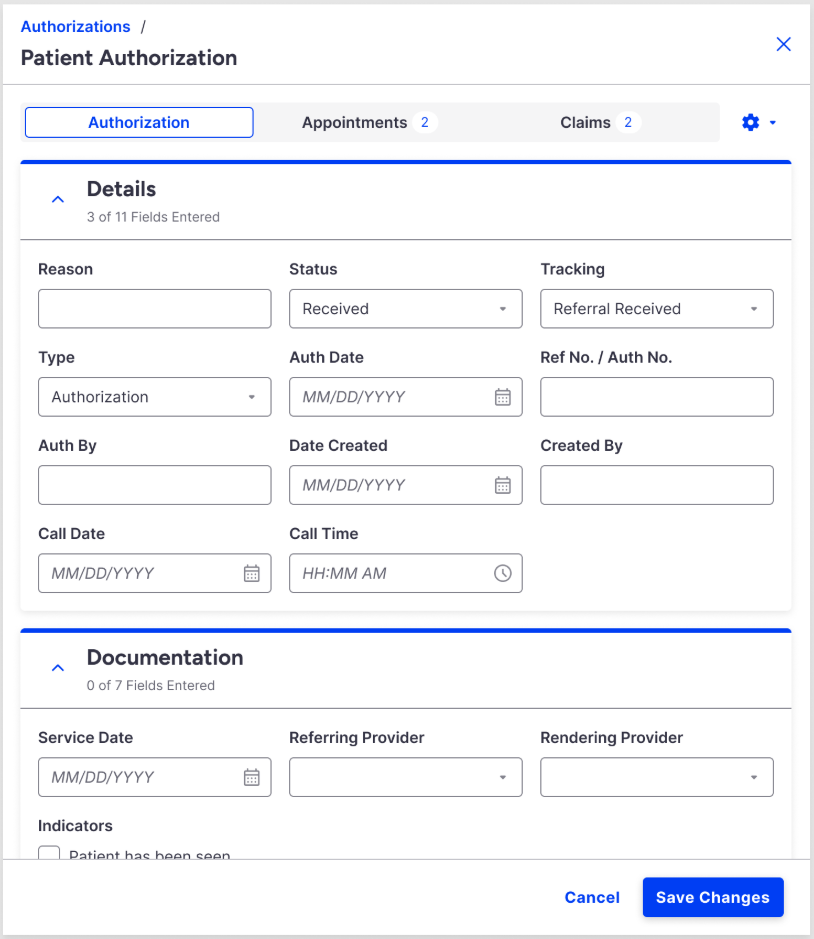
U20166: The patient authorization screen allows users to document and track all your patient authorizations. In this release, we are modernizing the Patient Authorization screen as part of our transition to the Vue framework. This release introduces a cleaner design and improved performance. The new screen will also include three tabs at the top for:
- Authorization - This tab allows documentation of the authorization details.
- Appointments - This lists appointments associated with the authorization. It displays appointment data, including Scheduled (resource of the appointment), Date (date and time of the appointment), Type, Status, and Claim (claim number associated with the appointment).
- Claims - This lists claims associated with the authorization. It displays claim data, including Claim #, DOS, Status, Rendering, and Location.
Prescriptions Enhancement – New Company Setting to Always Include Supervising Provider in Payload
U21416: Some practices experienced pharmacy delays for non-controlled prescriptions when supervising provider data was absent from the payload. Industry guidance recommends the automated inclusion of supervising provider information for mid-level practitioners to prevent dispensing delays. In this release, we added a new company setting, "Always Include Supervising Provider for Prescribers." When enabled, it allows a practice to include supervising provider details in the prescription payload. This new Company Setting will be OFF by default, (decoupled supervising provider). 
Patient Setup - Removed Responsible Party Overwrite Capability & Added "Same as Patient" Delete Option
U21425: We previously added the capability for users to overwrite the patient's responsible party (when designated "Same as Patient") if no claims or payments were linked to that party. However, this introduced a scenario where the user could remove the city from the responsible party (when "Same as Patient"), also removing it from the patient's demographics tab. In this release, we resolved this by removing the overwrite capability and allowing the deletion of "Same as Patient" instead. This will still utilize the usage logic and only allow deletion if the responsible party has not been utilized. The "Type" radio buttons will be enabled or disabled based on whether the responsible party can be switched, and the ability to remove the responsible party is only available if the patient does not have any claims or payments.
Resolutions
iScheduler Day Setup Screen Role Not Limiting Users With Read Only Access
B17934: The iScheduler Day Setup screen role controls user access to modify the schedule from this screen. Previously, this role, even when set to read-only, allowed users to update the iScheduler Day Setup. In this release, code was added to check permissions at the iScheduler Day Setup page level. Now, when read-only access is granted, users can view the iScheduler Day Setup screen but cannot update or modify it. If a user is neither an administrator nor has write permissions to the 'iScheduleDaySetup.htm' screen, most context menu items will be grayed out. 
Added validation to prevent repetitive faxing of a single fax request
B20956: Resolved an issue where a user faxed a document, and the document ended up being faxed multiple times without an error message indicating it was already queued for sending. This has been corrected, and safeguards have been implemented to prevent future instances of repeated mass faxing.
Claim Submission Response of Payer Acknowledgement Not Being Processed for All INS Responses
B20982: When the clearinghouse responds to a submitted claim, they provide a REC file and an INS file. The REC file serves as the clearinghouse acknowledgment, while the INS file is the payer acknowledgment. Several INS files appeared to have been processed and archived, but the processing was unsuccessful, and the claims were not updated with the payer response. This resulted in these claims remaining in an "In Process Step 3" status instead of updating to a "Sent Electronic" status. In this release, we modified the response process to correctly log this incoming data from the clearinghouse.
User Login Time Restrictions Not Preventing Users From Login In
B21054: Previously, when User Login Time restrictions were set, a user could not log in outside the allowed login days/times. Additionally, if a user was logged in and exceeded the restriction's end time, they would be logged out.
In this release, we corrected the issue where User Login Time restrictions were not being factored for user login. We added an extra check during the login process that occurs concurrently with the check for whether the user is already logged into the system elsewhere. 
Care Team Role: Not honoring the Read Only security role
B21373: Corrected an issue where users with security access set to "Read Only" for the Patient Care Team screen were able to make edits. Users with "Read Only" mode are now prevented from accessing the "Edit Care Team Member" screen and can no longer add, edit, or delete records.
Intermittent Slowness Attempting to View the Patient Transaction History
B21376: Corrected an intermittent (client-specific) issue that prevented the patient transaction history from loading. Users reported that this action would display the loading window indefinitely and eventually time out, resulting in a "page unresponsive" error message in the browser. This issue has been fixed in this release.
Claim Entry: Progress Note Getting Log Error
B21429: Corrected an issue that caused users to receive a log error when opening the progress note from the claim entry on some claims. This occurred when the company setting for "Soap note sign off user to display" was set to "3" and a multi-sign-off setting (primary and secondary sign-off) was in use. We modified the code in this release to resolve this issue.
Medications: Print for Rx Custom Failing and Rendering a Blank Print Screen
B21423: Corrected an issue that caused inconsistent behavior when printing prescriptions using the RX Custom prescription print format for providers with two separate profiles. Although both profiles belonged to the same provider and followed identical print steps and settings, the signature size was slightly increased for the failing profile. This intermittent issue could impact prescription workflows but has now been resolved.
Billing: Payment Plan Deferred Installment Processed 2 additional payments
B21361: Corrected an issue where deferring a payment plan installment would correctly defer that payment, but the nightly process would then process the next two months of payments. This has been resolved so that the nightly process now correctly skips the deferred payment and does not process duplicate payments.
iScheduler Location Overbook Message Failing to Take Response Input
B19066: Resolved an iScheduler issue where, when the overbook message was enabled for a location and the user attempted to schedule an overbooking with a placeholder, the system continuously prompted the user to proceed with the location overbooking, but prevented the appointment from being scheduled. Selecting "yes" to the prompt would cause it to reappear in a loop, instead of scheduling the appointment. This release corrects this bug, allowing overbooking to occur for the service location. 
Antiforgery token errors in Production
B21247: Corrected an issue that triggered multiple AntiforgeryValidationException token errors on a client database. The exceptions were thrown when new insurance was associated with a patient, and were triggered by a client cookie issue after the move to AWS. In this release, we added code to delete cookies on login and logout to correct this issue.
Payment Listing by Poster and Date Report Not Running
B21399: Corrected an issue that prevented the Payment Listing by Poster and Date report, found under the Practice Summary report, from yielding results. The report download request did not provide an error; it simply did not open the Excel file. The issue stemmed from a broken Excel download code that was only correctly coded to work for Internet Explorer. In this release, we updated the Excel download code so it can now be downloaded to all browsers. 
Responsible Party "ID Type" Missing SSN as an Option
B20765: Corrected an issue in the Patient Setup's Responsible Party tab where "SSN" was not an available ID Type option. Previously, when the responsible party was the same as the patient and the patient's primary identification was set as an SSN in the Demographics tab, the Responsible Party tab mirrored the SSN but did not select an ID type because SSN was not an option. This release adds "Employee ID" and "SSN" to the Responsible Party ID Type dropdown. 
Superbill Not Saving The Order Of ICD10 Codes
B18617: Corrected an issue in a specific database where the ICD-10 code order reverted to the default after being changed and saved on the superbill. This has been resolved in this release to ensure the saved order is now retained after saving.
MML From IOS Device Not Allowing Statement to be Viewed
B21366: Patients can usually view their statement history and all statements within MML. However, when logging in to MML from an iOS device (iPhone), the statement download option does not allow the patient to download and view the statement. No error is displayed, and nothing occurs when the "Download Statement" button is selected. To fix this, we added code to detect if the user is on an iOS device or Safari so we can correctly trigger opening the attachment.
Quick Pay Claim Tab Allowing Update to the Superbill Without Requiring Allow Updates Checkbox
B19877: Corrected an issue where the Claim tab of the Quick Pay window allowed users to update superbills without checking the "Allow Updates to 'Closed - Electronic Superbill'" checkbox, a behavior inconsistent with the EMR Superbill tab. This release updates the Quick Pay > Claim tab to match the EMR > Superbill tab's functionality, ensuring the Save button remains grayed out until the checkbox is selected, enabling superbill updates.
Not Login Error Info When a Call to PaySimple Fails
B20558: Resolved an issue where the response of an unsuccessful PaySimple call was not being read, preventing login errors from being logged for failed PaySimple calls. In this release, we added error logging for failed PaySimple calls.
As part of this release, we are continuing our ongoing work to assess, monitor, and address any security vulnerabilities.
